
Interactive lessons
Lessons combine text, images and interactive visualizations. Read an explanation and step through its examples in the same view.
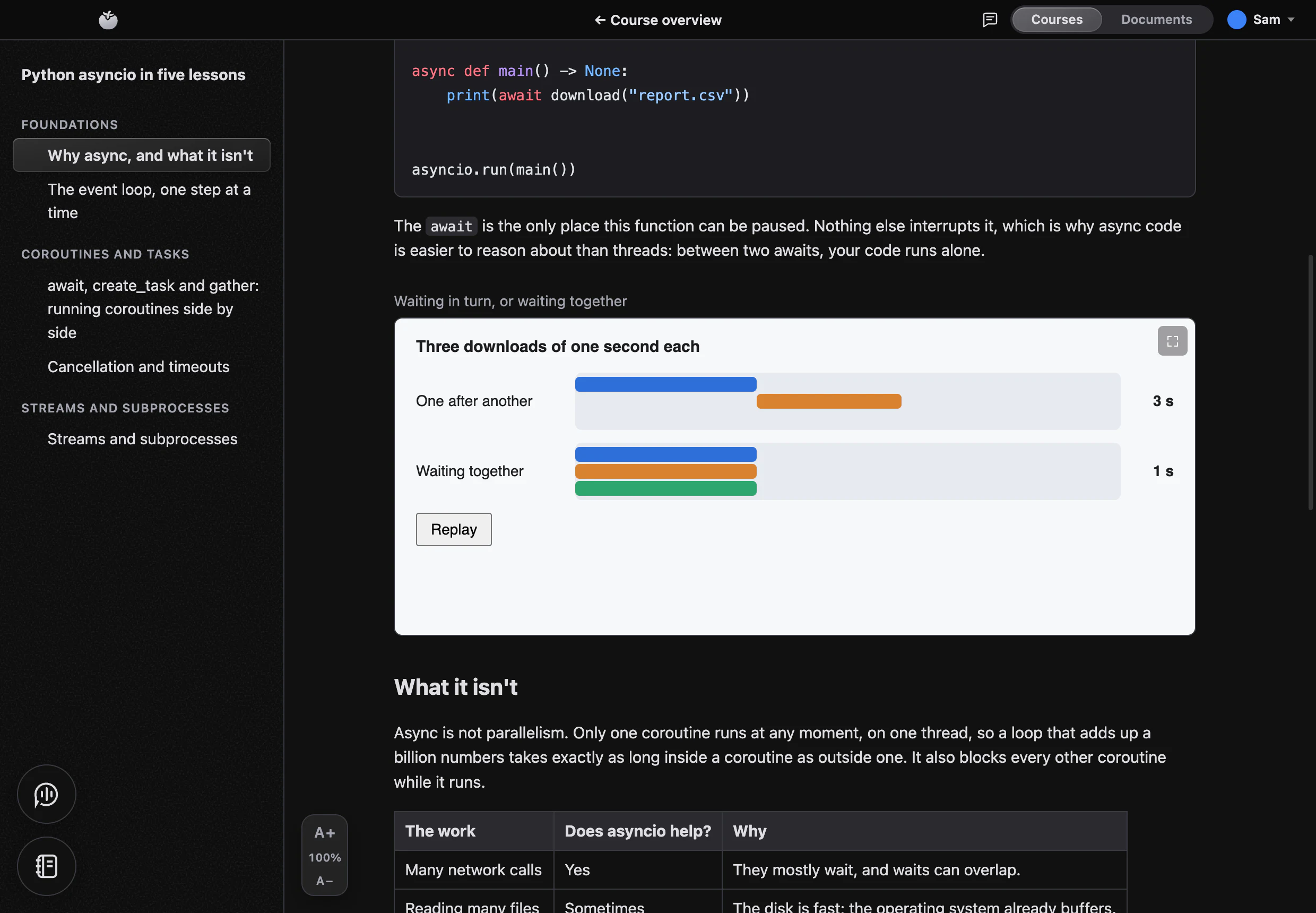
Study courses and PDFs, keep your own notebooks, and talk through ideas with Coach. Practice with quizzes, flashcards and code, or create a course of your own.
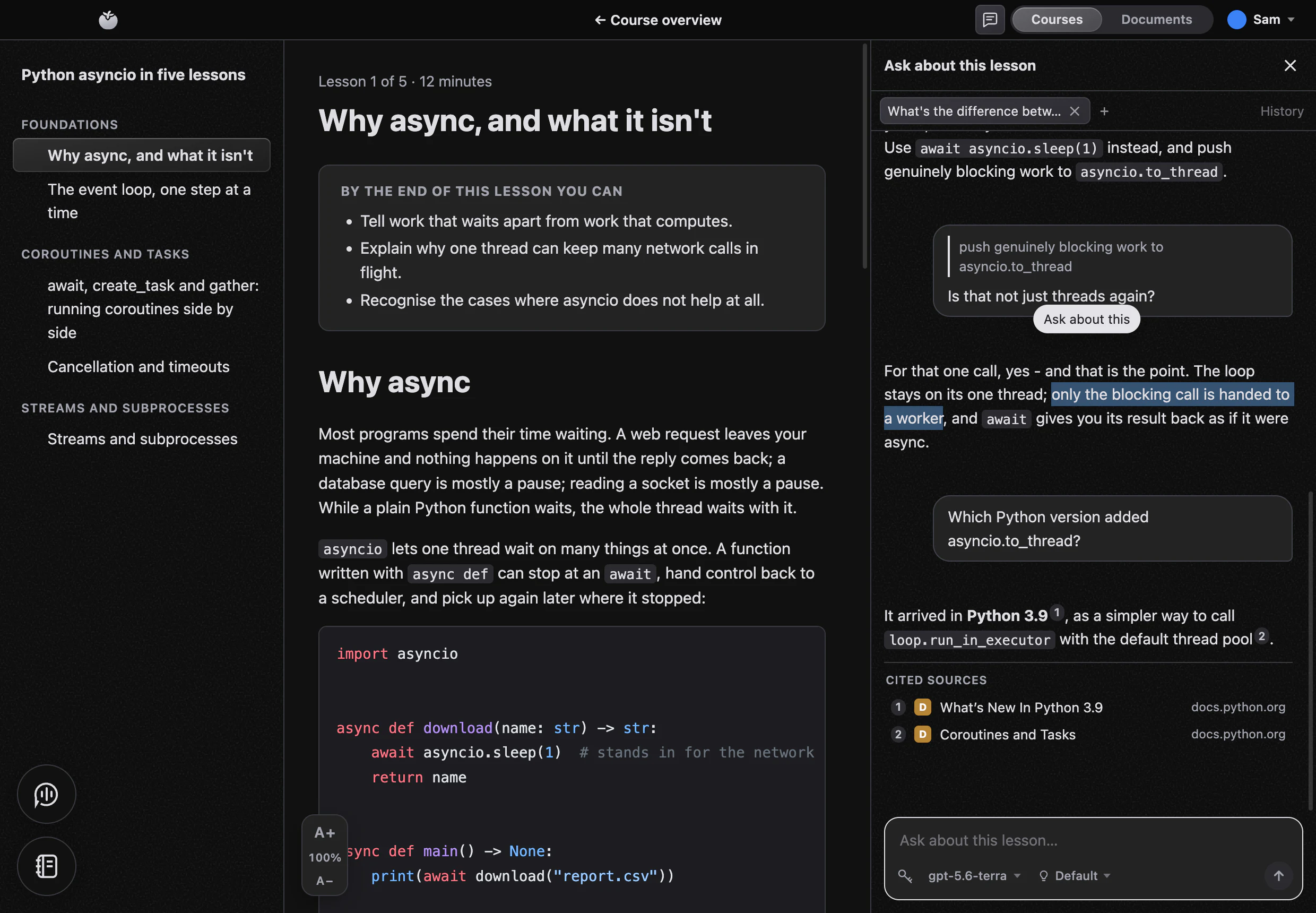
Courses can cover any subject
Keep downloaded courses, PDFs and personal notebooks on your Mac. Connect a learning server to continue enrolled reading on the web; AI features require an internet connection.
Lessons combine text, images and interactive visualizations. Read an explanation and step through its examples in the same view.
Write and run Python in the built-in editor and terminal. Each exercise includes checks you can run on your Mac, using the bundled interpreter.
Highlight a passage and ask a question in the side chat. The assistant can find relevant course passages, with quiz answers and exercise solutions excluded.
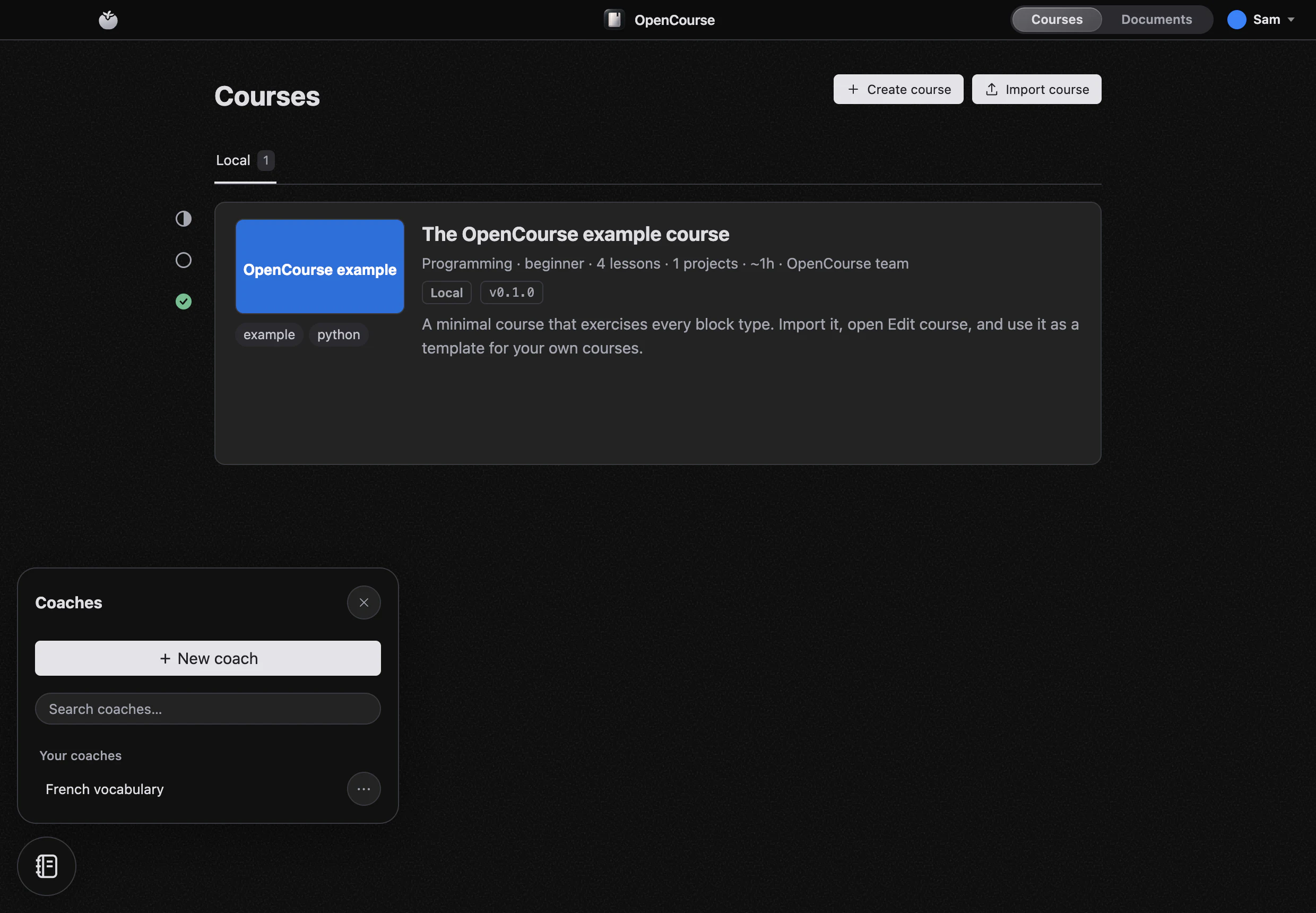
Open the floating Coaches button and start talking. Your coach can read the lesson, PDF, notebook or selection you are working on, search accessible learning material, and keep its own memory between conversations.
Review cards from completed lessons and rate how well you remember each answer. Your ratings determine when each card is due again.
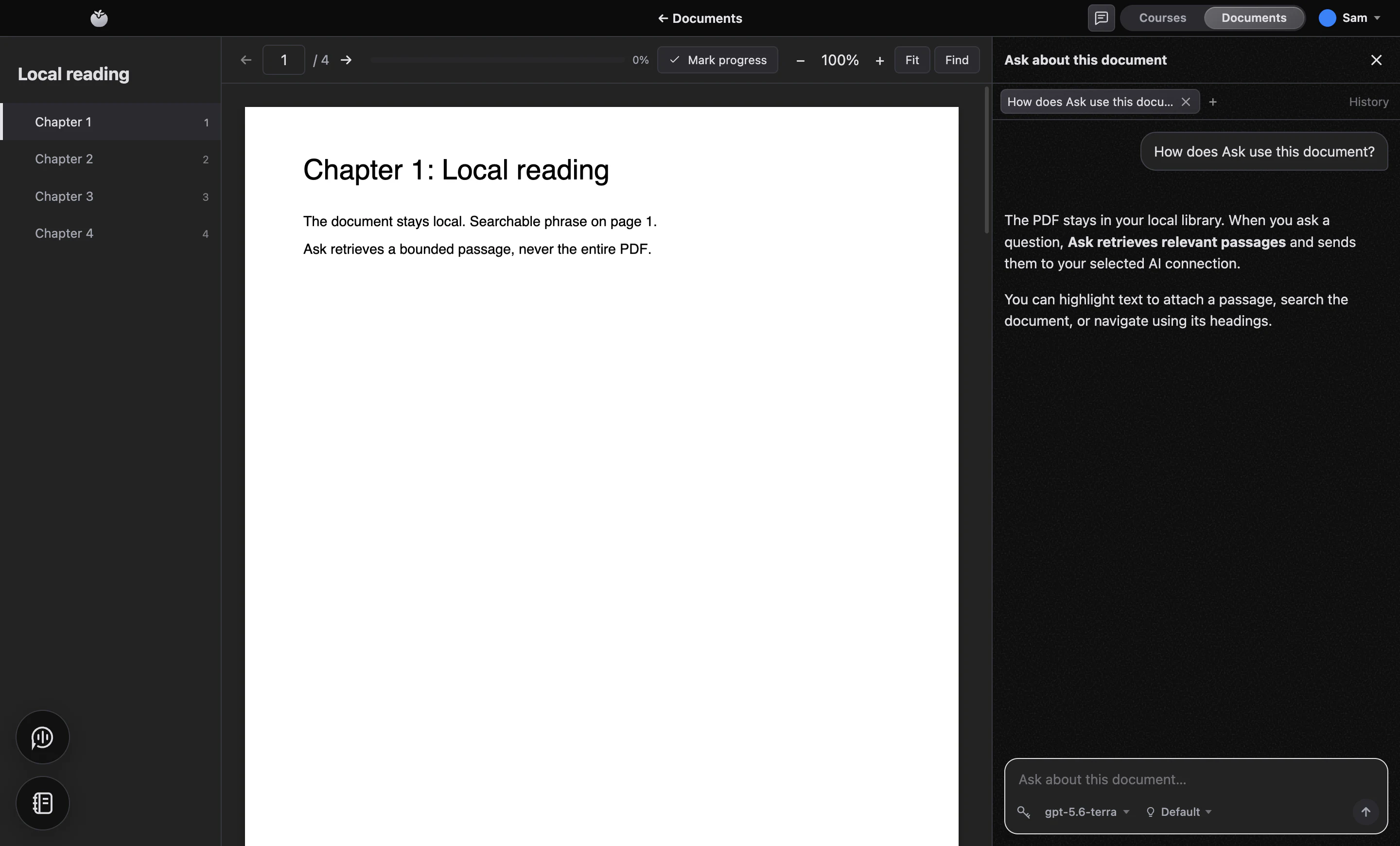
Import PDFs into Documents, find passages and navigate the outline. Highlight text to ask a question, with page references that take you back to the source.
Explore DocumentsWrite in separate windows with autosaving pages and pasted or dropped images. Search across your notebooks, link one to a course or PDF, and ask about your notes without AI changing them.
Start a notebookA connected server keeps enrolled progress and reading conversations in sync. Read courses and PDFs, take quizzes and review flashcards in its browser player.
Desktop and webChange the app's colours, fonts and background images. Import a theme or create one using the documented theme format.
Keep PDFs beside your courses. Search the text, follow the outline and reopen where you left off. Ask about a selected passage or let reading chat retrieve relevant pages.
Your coaches are a click away while you read or write. Start a spoken conversation, ask about what is on screen, and keep studying as the coach follows your context.
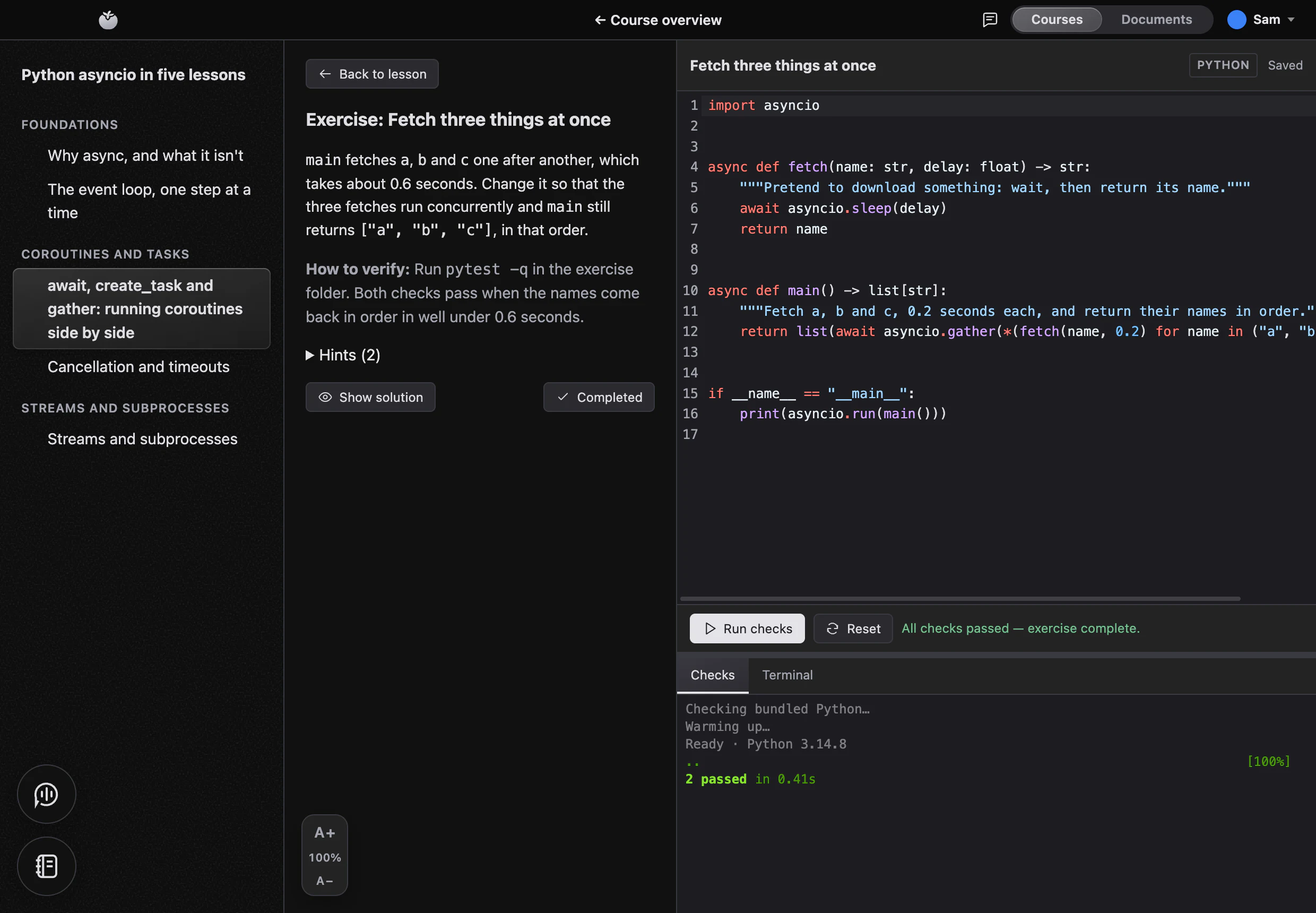
Programming exercises open in a workbench with an editor, a terminal and the course's own checks. Run them as often as you like; when they pass, the exercise is done.
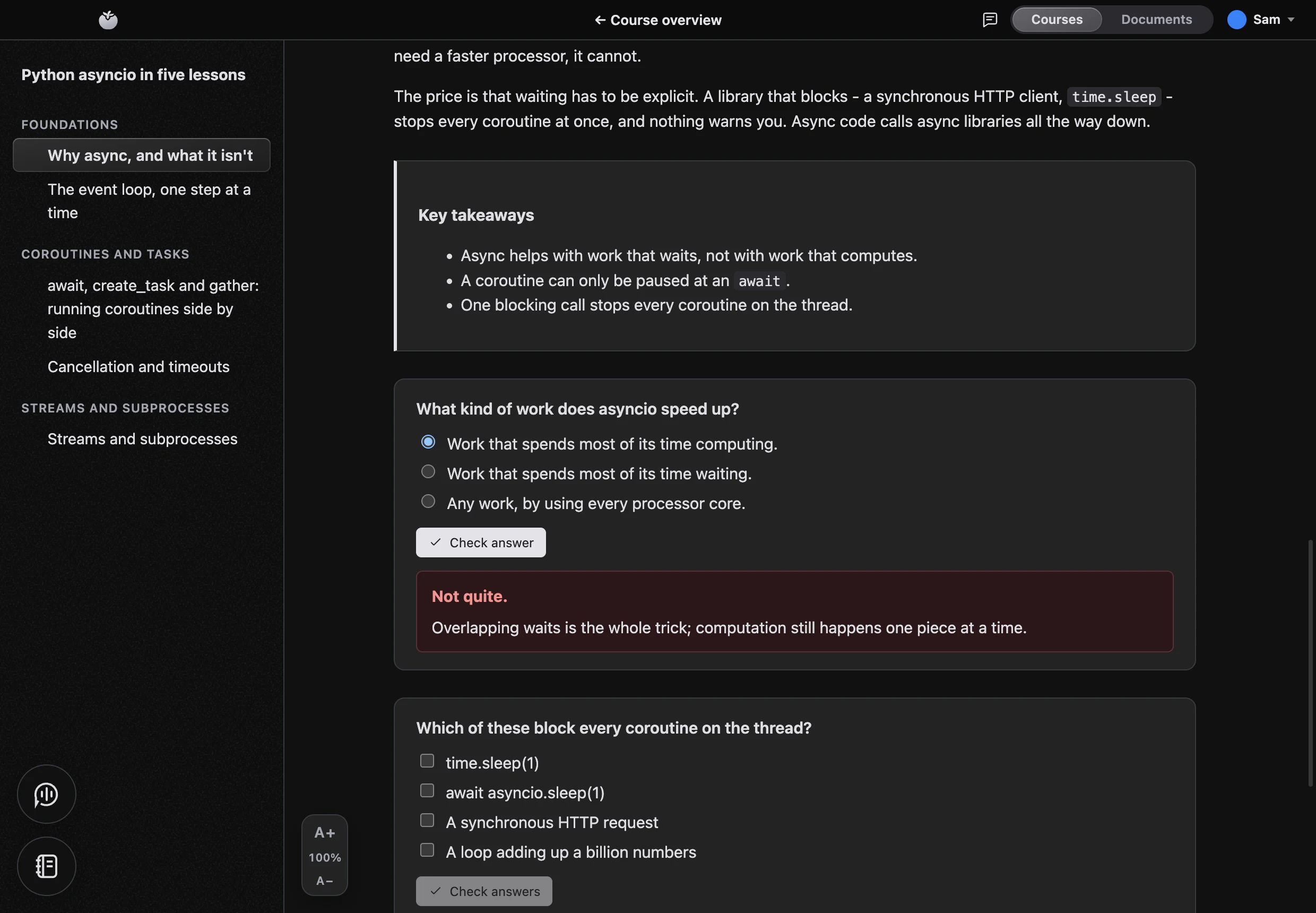
Check your understanding with quizzes and review the explanation for each answer. Lessons can include objectives and key takeaways to help you revisit the material.
Write by hand or ask AI to draft and revise lessons, quizzes and exercises. Review the course in a live preview; edits stay in memory until you save.
Create your first course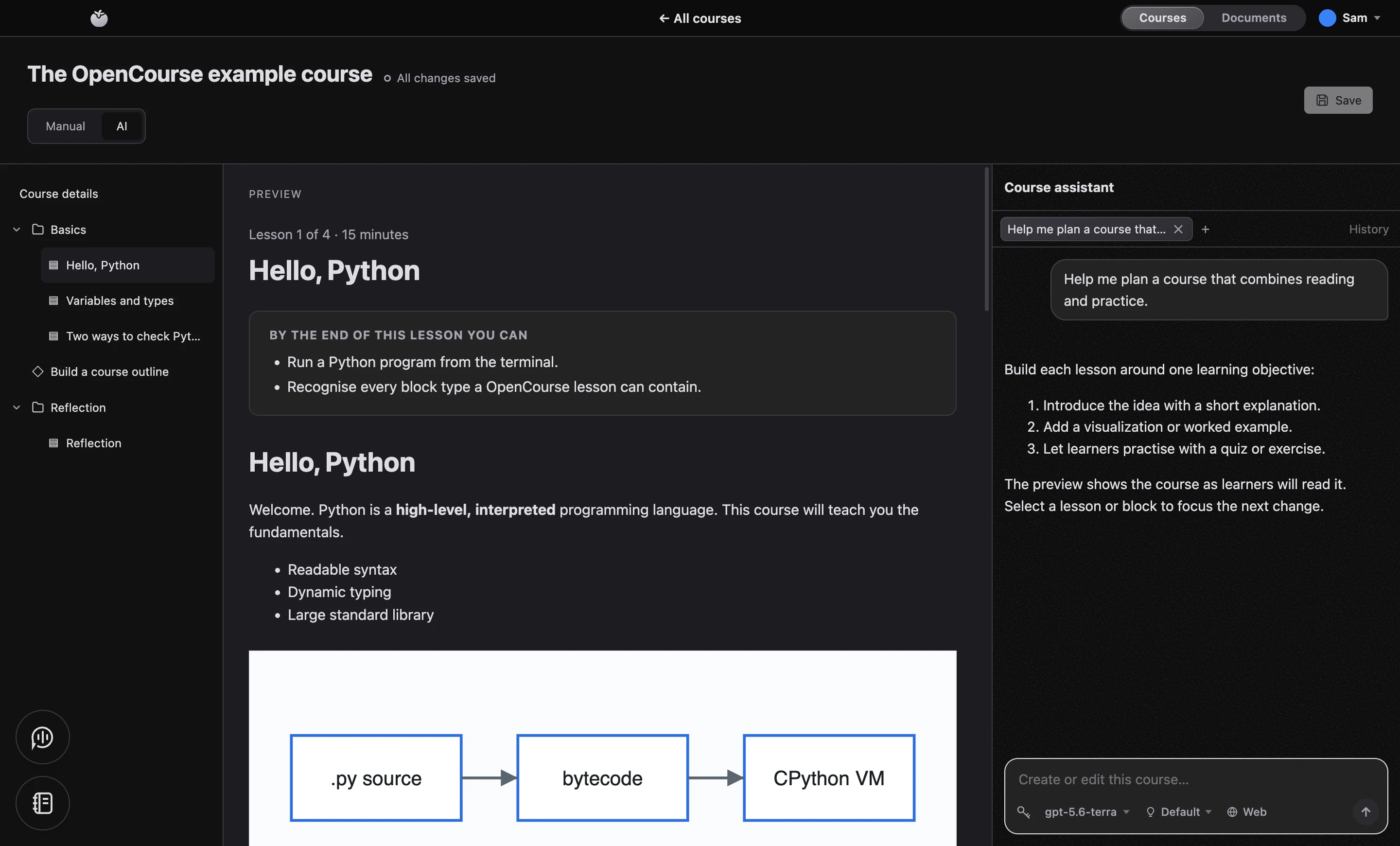
Write and preview a course, use AI to draft or revise it, then export a ZIP or publish to a learning server. Share PDFs too. Learners choose when to accept new versions.
Local study, optional server sync. Imported courses, PDFs, personal notebooks and Coach memory live on your Mac. Enrolled server content synchronizes progress and reading conversations with that server.
Separate AI connections. Local chat, notebooks, Coach and authoring use your local OpenAI connection. Reading chat for server content uses credentials configured on that server, without falling back to your local key.
No usage analytics. The app and website do not collect usage analytics. Catalog connections and app update checks are optional.
The app, learning server, file formats and website are maintained in one MIT-licensed repository. You can read the code, report issues and contribute changes on GitHub.
Yes. The desktop app and learning server are free and open source under the MIT License. Optional local AI uses your OpenAI API key or ChatGPT connection; provider charges and plan limits apply. Reading chat for server content uses a separate API key configured on that server.
Macs with Apple silicon, on macOS 13 Ventura or later.
No account is needed to import courses or PDFs, write personal notebooks, or create courses. Enrolling in or publishing content on a server requires an account there. Registration availability depends on the server.
Import a course ZIP or PDF, add courses and documents from a connected server, or write a course in the built-in editor. The editor can also draft and revise a course with AI. You review the changes and choose when to save.
When you use Coach, it can inspect your current lesson, PDF page, selections and open notebooks, including unsaved notebook edits. It can search and read local material and accessible content on connected servers, with quiz answers and exercise solutions excluded. Each coach keeps its own memory between conversations. Open it from the floating Coaches button; there is no separate Coach workspace or file browser.
No. Personal notebooks are autosaving Markdown pages in their own windows, with images, search and optional read-only AI chat. They stay on your Mac and can link to a course or PDF. Python notebooks belong to a course and run code using its Python environment.
Yes. A connected learning server provides a web reader for courses and PDFs, quizzes, flashcards and reading chat, with enrolled progress and reading conversations synchronized with the desktop app. Coding exercises, projects, Python notebooks, personal notebooks, course authoring and Coach use the desktop app.
No. Lessons, pictures, interactive visualizations, quizzes and flashcards work for any subject. Programming courses also get checked Python exercises and executable notebooks with bundled Python. Projects can use other languages with tools you set up yourself.
Imported content, personal notebooks, Coach memory and local conversations stay on your Mac unless you use AI or explicitly publish content. Enrolled server content synchronizes progress and reading conversations with that server. AI sends relevant material to OpenAI; Coach can also read accessible server material through your local AI connection. The app collects no usage analytics.
Yes. The learning server is part of the same open-source project. Run it with Docker for a class, team or community, with course and PDF publishing, accounts, web learning, synchronization and administration. The self-hosting guide covers setup and backups.

Courses, PDFs, notebooks and a coach, together on your Mac.